Linux Kernel Development on the Raspberry Pi Zero W
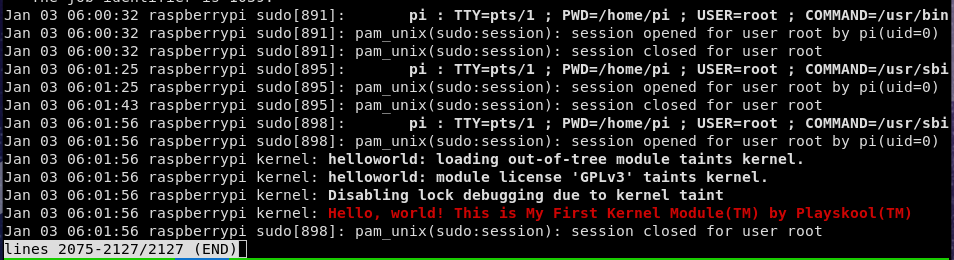
I scraped Utah's MLS with Rust to find the commute time of different properties “From source?” you say. “But Tristan, we can totally just build a module as long as we have the headers.” Yes, yes. That’s true. But we’re on a learnin’ adventure here today, so we’re going to start by building the kernel from source. Plus, building the kernel from source and then building kernel modules off of that is a great way to ensure the module is compiled against the same version as the kernel is running, which is Very Important. First, I clone the sources and run a build, to make sure I have everything I need. We need to make the config file that controls the kernel build process. Because we’re doing this on my (much more capable) machine instead of on the target, we include some extra parameters to specify how to cross-compile. I put my laptop into “High performance” mode for whatever that does and run the following: Now it’s time to deploy our changes. Plug in that SD card and let’s get down to it. This step is a little involved, so I wrote up a script to do it for me. Now we’ll slide that SD card in the Pi Zero W and boot ‘er up. Success! It still boots. That’s good news. Now let’s make some oh-so-satisfying changes. These first few “learning” modules won’t do anything serious, so I don’t feel inclined to put them in their own git repo(s). Instead, let’s make a new git branch and a new directory in the kernel repo. Then, let’s add our beginners’ kernel module and a Makefile. As you can see, I am a fan of silly messages for test printouts. It makes it more fun. Now for And the Makefile: The Makefile has two targets: So now we have a bunch of files in our Now we’ll run some commands on the Pi Zero. First we copy the kernel module to an appropriate directory. Then, we’ll run On the Pi: There it is! That’s our message. When we unload the module, we will see the other message as well. That was a lot of fun! Tune in next time for a less trivial kernel module as we work our way towards building drivers. Building the Raspberry Pi Kernel from Source
git clone --depth=1 https://github.com/raspberrypi/linux.git raspberrypi-linux
cd raspberrypi-linuxKERNEL=kernel
make ARCH=arm CROSS_COMPILE=arm-linux-gnueabihf- bcmrpi_defconfigmake ARCH=arm CROSS_COMPILE=arm-linux-gnueabihf- zImage modules dtbsdeploy.sh:#!/usr/bin/env bash
set -ue -o pipefail
DESTINATION_ROOT="/media/tristan/rootfs"
DESTINATION_BOOT="/media/tristan/boot"
KERNEL="${KERNEL-kernel}"
if ! [[ -d "$DESTINATION_ROOT" ]]
then
echo "Could not find root destination \"$DESTINATION_ROOT\". Is it mounted?"
exit 1
fi
if ! [[ -d "$DESTINATION_BOOT" ]]
then
echo "Could not find boot destination \"$DESTINATION_BOOT\". Is it mounted?"
exit 2
fi
# Install kernel modules to SD card
sudo env PATH=$PATH make ARCH=arm CROSS_COMPILE=arm-linux-gnueabihf- INSTALL_MOD_PATH="$DESTINATION_ROOT" modules_install
# Backup old img
cp "${DESTINATION_BOOT}/$KERNEL.img" "${DESTINATION_BOOT}/$KERNEL-backup.img"
# Install new kernel and device tree files
cp arch/arm/boot/zImage "${DESTINATION_BOOT}/$KERNEL.img"
cp arch/arm/boot/dts/*.dtb "${DESTINATION_BOOT}/"
cp arch/arm/boot/dts/overlays/*.dtb* "${DESTINATION_BOOT}/overlays/"
cp arch/arm/boot/dts/overlays/README "${DESTINATION_BOOT}/overlays/" Let’s Make a Kernel Module
git checkout -b my_custom_development
mkdir custom_modules
cd custom_moduleshelloworld.c:#include <linux/init.h>
#include <linux/module.h>
MODULE_LICENSE("GPLv3");
static int hello_world_init(void)
{
printk(KERN_ALERT "Hello, world! This is My First Kernel Module(TM) by Playskool(TM)\n");
return 0;
}
static void hello_world_exit(void)
{
printk(KERN_ALERT "Goodbye, world! Remember to tip your waitresses\n");
}
module_init(hello_world_init);
module_exit(hello_world_exit);CR_C := arm-linux-gnueabihf-
KERNEL_DIR := /home/tristan/Repos/raspberrypi-linux/
obj-m += helloworld.o
all:
make ARCH=arm CROSS_COMPILE=$(CR_C) -C $(KERNEL_DIR) M=$(shell pwd) modules
clean:
make ARCH=arm CROSS_COMPILE=$(CR_C) -C $(KERNEL_DIR) M=$(shell pwd) cleanall and clean. Let me break down the make commands for you.ARCH=arm sets the architecture to arm. Important for cross-compiling.CROSS_COMPILER=$(CR_C): Sets the cross-compiler binary prefix. When make calls gcc now, it will call arm-linux-gnueabihf-gcc instead.-C $(KERNEL_DIR): This has make change directory to KERNEL_DIR before it does anything else. We do this so all the headers and other kernel-ly goodness is in place before we make.M=$(shell pwd) This sets the variable M, which is typically used in kernel Makefiles to represent the directory of an external module to build.modules: The actual target to build. All the logic for how this is executed is defined in the main kernel Makefile.custom_modules directory. Let’s copy one over to our Raspberry Pi Zero W and load it up to see the fruits of our labor! We need to copy it to somewhere in /lib/modules/scp helloworld.ko pizero:/tmp
ssh pizerodepmod and modprobe, to load our module into the kernel. Then, we’ll check to make sure it’s loaded with lsmod. Finally, we look at the message we wanted our module to print using journalctl.sudo cp /tmp/helloworld.ko /lib/modules/5.15.84+/kernel/
modinfo /lib/modules/5.15.84+/kernel/helloworld.ko
depmod
sudo modprobe helloworld
lsmod | grep helloworld
journalctl -xe